


Some of the best I’ve ever seen. Enjoy.
-
What kids do with MySpace
This video is a compilation of pictures that have appeared on MySpace. It’s a bit disturbing – and probably not safe to watch at work. I don’t know whether this is represenative of young adults today and I don’t think this represents all MySpace users, but no doubt pictures like this will follow you for the rest of your life. Please, be careful what you post on the Internet.
-
Ethernet Cable soldiers
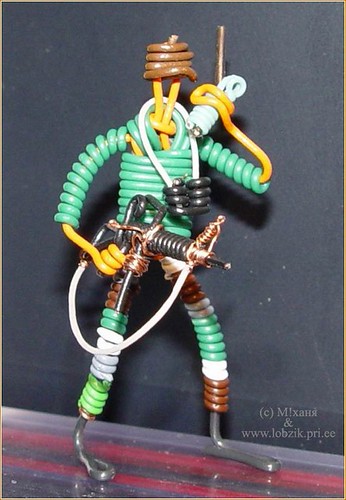
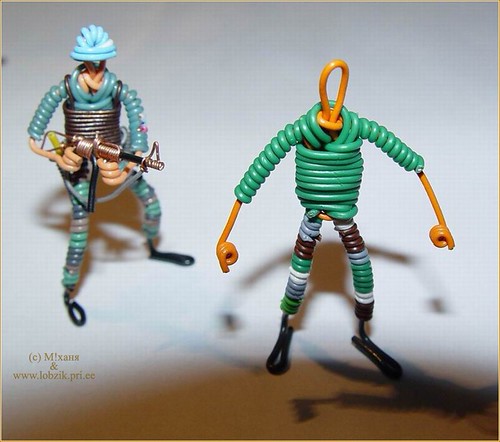
A friend emailed me these pictures today. Someone is much handier than myself has made battle scenes using CAT5 ethernet cables. I’m disappointed by the lack of Legos used in this project, but still impressive nonetheless.




-
Helicopter attempts to fly between two trees
And since I’m posting it, you know how it ends.
technology
aviation -
NES Light Gun – Alarm clock
 A London Geek has hard-wired a vintage NES lightgun to his alarm clock in what could be described as a pretty fun gadget – or piece of art. I like the idea of popping a cap in my alarm clock each morning with anything but a 12-gauge shotgun:
This piece connects two electronic pop icons from the 80s: the famous cube-shaped bestselling alarm clock from Sony and the Nintendo light gun Zapper, launched in 1985 along with the also bestselling 8 bit game console NES. These two devices are hard-wired so the time and the alarm of the Sony clock can be set up firing with the light gun. See the “hard-wired functionalities” below to know how it works. This piece in particular has been featured in the magazine Artinvestor dec. 2005 (special issue on Game Art). (more)
-
Superman is Methodist
Ever wonder about the religious affilitation of your favorite superhero?
We want this page to be as accurate as possible, backed up by objective, published information and not based on conjecture. We do not want this listing to be slanted toward any particular denominational or religious viewpoint. It is intended to accurately report the composition of comic book character religiosity.
-
Spring cleaning for your PC
 During the winter months it’s likely your computer has become sluggish and glitchy while you’ve been indoors browsing the Web and downloading annoying forwards from your friends. A PC that doesn’t receive routine maintenance, even in just a couple months, can experience a severe reduction in performance and reliability.
Much like how your house accumulates useless clutter and dirt over a period of time, so does your computer. That’s why it’s important to do a thorough overhaul every once in awhile – the same way you might clean out the closets, refrigerator, and from under the couch. A deep clean for your PC will also give you a better outlook and a higher sense of Chi, just like cleaning out the garage.
So let’s get started.
The first thing you’ll want to do is run your Disk Cleanup utility, which is a program you already have in Windows XP. Disk Cleanup is a utility that’s a bit like hiring an inexpensive maid for your home just before guests arrive: it’s not enough to have by itself but it puts you in a good place to tackle other important larger tasks.
You’ll find Disk Cleanup under the Accessories -> System Tools folder in your Start Menu:

It’s safe to check all the options in this window. If you’re in doubt, however, leave the item unchecked and click OK.

Disk Cleanup can run kind of slow, especially if your computer is bogged down with a lot of junk. But be patient and let the cleanup run its course. The more junk files you have the longer it’s going to take this application to do its job. Running Disk Cleanup will make a good starting point for us to conduct a few other crucial tasks.
Next, let’s go ahead and defrag that hard drive. Running Disk Defragmenter, which is also on your computer if you’re using Windows, is one of the most important things you can do to have a clean and healthy hard drive. It works kind of like an interior decorator by putting important and useful things in key area and making your basic overall computing experience will go way up. So let’s run it:
You’ll find Disk Defragmenter right next to wear you found Disk Cleanup – in your Accessories -> System Tools foler in your start menu. Go there now and click on the link. You should have this window open now:

Go ahead and click Defragment and let the utility run its course. It might take some time, especially if it’s been awhile since you’ve done this. Even longer if you’ve never done this. It’s not unusual for a heavily fragmented hard drive to take a few hours to defrag, but your computer will love you for it.
After you’ve defragged, let’s go to the next step, which is to scan your computer for virus, and to protect it from future attacks:
I’m a big fan of AVG Antivirus. It’s free, it’s reliable, and it’s better than a lot of the high dollar antivirus utilities you could buy. Go ahead and download it and follow the program’s installation and scan instructions. From now on, it’s important you keep AVG Antivirus up to date. Doing so will keep you nice and clean and will prevent the heartache of having a hard drive become unusable due to a virus attack.
We’re almost done. Let’s do one more thing that’s crucial to a healthy computer:
Let’s sweep your hard drive of all the little bits of data and junk files your computer accumulates when you use the internet. The best piece of software you can use for this is Lavasoft Ad-Aware. Again, it’s free and reliable. Go ahead and download it, update it, and let it scan. It’s likely safe to delete everything it recommends. Again, if you’re in doubt about a element that this utility finds, un-select it and don’t let Ad-Aware delete it.
You’re best bet is to let these procedures and utilities do their job as often as possible. Each one dramatically reduces your chances of having a really bad, preventable computer problem. Oh, yeah. And make backups of your data as often as possible.
michael castellon
mike castellon -
Why AOL is still a miserable experience
A few weeks ago I decided to install the newest version of AOL Instant Messenger on my laptop at the request of Kevin Rose who wanted to chat about the discovery of a technical glitch on Digg.
Although I configured the setup utility to install only AIM and none of the other malware AOL tries to install by default, it still installed their miserable browser, which automatically set itself as the default browser for several apps including the Flickr image upload utility.
The browser would start itself at random times – especially when I was doing anything involving AIM or Flickr.
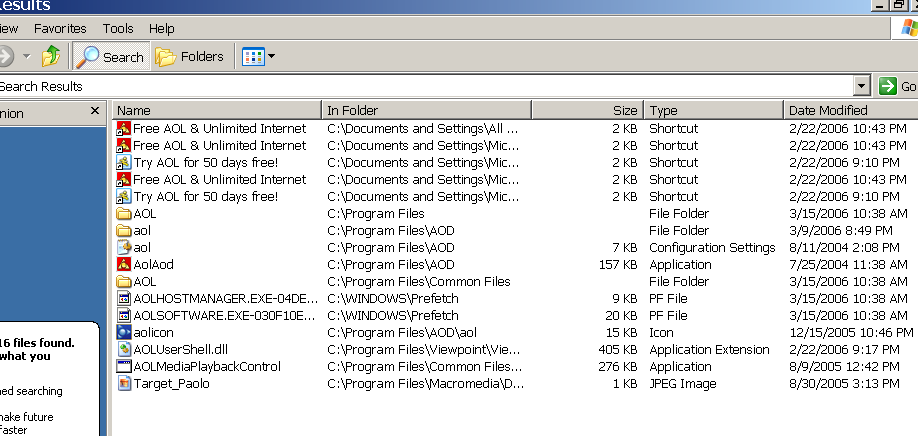
Naturally, the AOL browser doesn’t show up in the Windows Add/Remove Programs utility. Instead, only the AIM program itself does. After finally getting angry enough to uninstall AIM in the hope of getting rid of AOL’s trash browser, I decided to search my hard drive for AOL programs, and saw that all these files were still embedded in my computer. I stress the fact that files were found on my computer after I uninstalled every AOL program using it’s uninstaller.
(click to enlarge)

Before anything else, I visited AOL Tech Support’s Website for assistance. Naturally, this is the page that comes up when you click on a button that offers help on uninstalling AOL:

If you want to do yourself and your computer a favor, stay far away from anything with the AOL brand.
 Michael Castellon